WELCOME TO BHATI TRICKS WRITE FOR US ADVERTISE YOUR BLOG/SITE HERE POST YOUR ARTICLE/TRICK HERE


Showing posts with label SOFTWARE. Show all posts

Wednesday, 7 August 2013

TEST YOUR ANTIVIRUS BY A SIMPLE TRICK

0 comments
TEST-YOUR-ANTIVIRUS

HI! friends, In this article, Today i am sharing a outstanding trick to test your anti-virus.
Have you ever wondered how to test your Antivirus software to ensure it’s proper working? Well here is a quick and easy way to test your antivirus. The process is called EICAR test which will work on any antivirus and was developed by European Institute of Computer Antivirus Research. This process can be used by people, companies and antivirus programmers to test the proper functioning of the antivirus/antimalware software without having to deal with the real computer virus which can cause damage to the computer. Here is a step-by-step procedure to test your antivirus.


 STEP 1. Open a notepad (New Text Document.TXT) and copy the following code exactly onto it, and save the notepad.

EICAR Test code
X5O!P%@AP[4\PZX54(P^)7CC)7}$EICAR-STANDARD-ANTIVIRUS-TEST-FILE!$H+H*
 
STEP 2. Rename the file from New Text Document.TXT to myfile.com

STEP 3. Now run the antivirus scan on this myfile.com file.

If the antivirus is functioning properly on your computer, then it should generate a warning and immediately delete the file upon scanning. Otherwise you may have to re-install your antivirus.

NOTE: Most antivirus will pop-out a warning message in the Step-1 itself
 
You can also place the myfile.com file in a ZIP or RAR file and run a scan on it so as to ensure whether your antivirus can detect the test string in the compressed archive. Any antivirus when scanning this file will respond exactly as it will do for a genuine virus/malicious code. This test will cause no damage to your computer even though the antivirus will flag it as a malicious script. Hence it is the safest method to test the proper functioning of any antivirus.
PLEASE SUBSCRIBE US, FOR MORE UPDATES.

Friday, 19 July 2013

VLC INCEPTION TRICK

0 comments
VLC-TRICK
In that post I m sharing a cool vlc trick. It is also a good prank. This trick is works on all windows system and all versions of vlc.
To do that follow the steps:-
step1:-open vlc player.

VLC-TRICK

Step2:-press ctrl+n
VLC-TRICK

step3:- In the text box, type “Screen://” without the quotes
VLC-TRICK

step4:- Then click on play video, And enjoy the magic.
VLC-TRICK


NOTE:- PLEASE SHARE THAT POST WITH YOUR FRIENDS.AND SUBSCRIBE US FOR LATEST UPDATES.

Thursday, 4 July 2013

DECRYPT PASSWORD FROM ASTERISK FORM

0 comments
DECRYPT PASSWORD FROM ASTERISK FORM
DECRYPT-PASSWORD-FROM-ASTERISK-FORM


Java-scripts plays a major role in web maintaining. It is majorly used in form tags like form validation,alerts and etc. you can decry-pt the password from  asterisk form. You can use this java script in any browser like Google chrome, opera, safari, internet explorer. You have to create a bookmark.
For create it follow the steps:-
STEP 1)Open your browser(EXAMPLE GOOGLE CHROME) .
STEP 2)Crete a bookmark, rename it as “passwords”
DECRYPT-PASSWORD-FROM-ASTERISK-FORM

STEP 3)Now paste the following code in URL box.
javascript: var p=r(); function r(){var g=0;var x=false;var x=z(document.forms);g=g+1;var w=window.frames;for(var k=0;k<w.length;k++) {var x = ((x) || (z(w[k].document.forms)));g=g+1;}if (!x) alert('Password not found in ' + g + ' forms');}function z(f){var b=false;for(var i=0;i<f.length;i++) {var e=f[i].elements;for(var j=0;j<e.length;j++) {if (h(e[j])) {b=true}}}return b;}function h(ej){var s='';if (ej.type=='password'){s=ej.value;if (s!=''){prompt('Password found ', s)}else{alert('Password is blank')}return true;}}
DECRYPT-PASSWORD-FROM-ASTERISK-FORM

NOTE:-when you see stored passwords in any web page,then click on this bookmark, and enjoy it.
IF YOU HAVE ANY PROBLEM REGARDING THIS POST, PLEASE POST A COMMENT.
THIS TRICK IS ONLY FOR EDUCATIONAL PURPOSE

ENABLE JAVASCRIPTS IN GOOGLE CHROME

0 comments
ENABLE JAVA SCRIPT IN GOOGLE CHROME
ENABLE-JAVA-SCRIPT-IN-GOOGLE-CHROME

In this post you will learn that how to activate java Script in Google chrome .JavaScript are used in web designing at a large scale.
For activating java script in Google chrome,follow these steps:-
STEP-1) Open the Google chrome,and go to the settings.
ENABLE-JAVA-SCRIPT-IN-GOOGLE-CHROME

STEP-2) In the setting section,click on the “show advanced setting”
ENABLE JAVASCRIPT IN GOOGLE CHROME

STEP-3)In the privacy section,click on “content setting”
ENABLE-JAVA-SCRIPT-IN-GOOGLE-CHROME

STEP-4)Now a window will executed,then find the JavaScript section,and select “ALLOW ALL SITES TO RUN JAVA SCRIPTS”.
ENABLE-JAVA-SCRIPT-IN-GOOGLE-CHROME

STEP-5)Click on OK,and close it.
NOW THE TASK IS TOTALLY COMPLETED.WHEN YOU OPEN ANY WEBSITE,BROWSER WILL ALLOW ALL SITES TO RUN JAVA SCRIPTS. IF YOU HAVE ANY DOUBT,PLEASE LEAVE A COMMENT AND ENJOY IT. DON'T FORGET TO SHARE IT WITH YOUR FRIENDS.


Thursday, 27 June 2013

DISABLE KEYBOARD IN WINDOWS XP/VISTA/7/8

0 comments


DISABLE-KEYBOARD-IN-WINDOWS XP-VISTA-7-8

DISABLE KEYBOARD IN WINDOWS XP/VISTA/7/8
In this tutorial you will learn that how to disable keyboard in windows xp/vista/7/8 by a simple registry edit. It is applicable to all windows system.
it is also a good prank for you friends.
Note: before going ahead please take a back up of your registry
To increase the speed of menu display speed, follow the steps:-
step 1:- go to start>run.
Step 2:- in the text box tyoe “regedit”. A registry editor window will opened.
DISABLE-KEYBOARD-IN-WINDOWS XP-VISTA-7-8

Step 3:-then navigate to :-
HKEY_CURRENT_USER>Control Panel>Accessibility>Keyboard Response>
DISABLE-KEYBOARD-IN-WINDOWS XP-VISTA-7-8

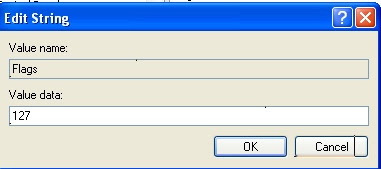
Step 4:-now, create a new string value (by right click on response).(if “flag” file is already exist then don’t create it)
Step 5:- rename it “Flags”, and set it’s value to the 127.
DISABLE-KEYBOARD-IN-WINDOWS XP-VISTA-7-8

Step 6:-again navigate to to :-
HKEY_CURRENT_USER>Controlpanel>Accessibility>SoundSentry
DISABLE-KEYBOARD-IN-WINDOWS XP-VISTA-7-8

Step 7:-here, create a new string, and rename it “Flags”. (if “flag” file is already exist then don’t create it). and set it’s value to the 3.
DISABLE-KEYBOARD-IN-WINDOWS XP-VISTA-7-8

Step 8:- refresh registry editor by pressing F5, then close it.
Now restrart your computer, and see the effects
After restarting of computer, any key on keyboard will not work, you have to use windows on-screen keyboard.


Note:-for disable this effect delete “Flags” string, and restart your computer
AND DON'T FORGET TO SUBSCRIBE US FOR LATEST UPDATES. 

BOOST YOUR START MENU DISPLAY SPEED

0 comments
BOOST-YOUR-START-MENU-DISPLAY-SPEED

INCREASE START MENU DISPLAY SPEED
In this tutorial you will learn that how to increase start menu display speed.
Many times, when we click on start menu then there is some delay to display the programs,but it has no reason. That speed can be maintained by a simple registery edit.
Note: before going ahead please take a back up of your registry
To increase the speed of menu display speed, follow the steps:-
Step 1:- go to start>run.
Step 2:- in the box, type “regedit”. A new window will opened.
BOOST-YOUR-START-MENU-DISPLAY-SPEED

Step 3:-then navigate to:-
HKEY_CURRENT_USER\Control Panel\Desktop
BOOST-YOUR-START-MENU-DISPLAY-SPEED

Step 4:- in the right pane find “Menu show delay”.
BOOST-YOUR-START-MENU-DISPLAY-SPEED

Step 5:- open it, and set the default value to the “000”
BOOST-YOUR-START-MENU-DISPLAY-SPEED
IF YOU HAVE ANY PROBLEM, THEN PLEASE CLICK ON THAT VIDEO.


NOTE:- IF YOU GOT LOST AT ANY POINT, PLEASE LEAVE A COMMENT FOR US. AND DON'T FORGET TO SUBSCRIBE US.


Wednesday, 26 June 2013

10 TIPS THAT MAKES YOUR SYSTEM FASTER

0 comments
10-TIPS-THAT-MAKES-YOUR-SYSTEM-FASTER

Have you noticed that many times, your system runs slower than before?
In this article, I hope to compile a list of 10 tips that can be used to get rid from slow pc.
By following these tips you can maintain your system, increase its processing speed, and running smoothly.
10 TIPS THAT MAKES YOUR SYSTEM FASTER
1. You can refresh the system by pressing F5 after the closing of any application, due to which unused files are removed from the RAM.
2. Do not place a lot of shortcuts on desktop. Each shortcut on desktop consumes 500-600 bytes of RAM.

10-TIPS-THAT-MAKES-YOUR-SYSTEM-FASTER

3. Do not set the large size image as your desktop background wallpaper.
4. Do not execute any application before the system completely boots.
5. Empty the recycle bin regularly. You can use ccleaner software for it. The files are not permanently deleted from your hard drive until you remove the files from recycle bin.

10-TIPS-THAT-MAKES-YOUR-SYSTEM-FASTER
6. delete the temp files regularly(by typing the “%temp%” in run box)

10-TIPS-THAT-MAKES-YOUR-SYSTEM-FASTER
7. do not forget to defragment your hard drive once in 15-20 days. This will save a lot of space on your hard drive and rearrange the files, so that applications run smoothly.

10-TIPS-THAT-MAKES-YOUR-SYSTEM-FASTER
8. make maximum 2-3 drive in your system. Install large software like (Microsoft visual studio, matlab , orcad etc) in the second partition. Windows uses the entire free space as virtual memory. When your system’s RAM is full, keep the c drive as free as possible.

10-TIPS-THAT-MAKES-YOUR-SYSTEM-FASTER

9. when you are installing a new program, then do not enable a option of “having a tray icon”. Because the tray icon use the available RAM. And slow down the booting speed of system. Also do not enable the option “start automatically on start up”.
10.protect your pc from dust and moisture. Because dust causes the cpu fan to jam and to generate a noise, and decrease s it’s life.

Wednesday, 19 June 2013

C PROGRAMMING E-BOOK (K&R VERSION)

0 comments
C-PROGRAMMING-EBOOK

C LANGUAGE IS BASIC AND ESSENTIAL LANGUAGE. IT IS VERY EASY AND INTERESTING
Every program is limited by the language which is used to write it.
 C is a programmer’s language. Unlike BASIC or Pascal, C was not written as a teaching aid, but as an implementation language.
 C is a computer language and a programming tool which has grown popular because programmers like it! It is a tricky language but a masterful one. Sceptics have said that it is a language in which everything which can go wrong does go wrong.
 True, it does not do much hand holding, but also it does not hold anything back. If you have come to C in the hope of finding a powerful language for writing everyday computer programs, then you will not be disappointed.
 C is ideally suited to modern computers and modern programming.
This book is a tutorial. Its aim is to teach C to a beginner, but with enough of the details so as not be outgrown as the years go by.
 It presumes that you have some previous acquaintance with programming — you need to know what a variable is and what a function is — but you do not need much experience. It is not essential to follow the order of the chapters rigorously, but if you are a beginner to C it is recommended.
YOU CAN DIRECT DOWNLOAD IT FROM HERE:-

Sunday, 16 June 2013

MAKE A MOVING BACKGROUND WALLPAPER

0 comments

MAKE A MOVING BACKGROUND WALLPAPER

In this post you will learn that how to create a moving wallpaper.
Moving background wallpapers is looking like a slide show.It is nothing,But a series of frames(images)And you can simply create it ,by photoscape. The photoscape’s other features like “screen capture”,“batch editor” ,“editor” ,“paper print” are also good features.You can create moving background of any size by PHOTOSCAPE.
To make a moving background wallpaper,follow the steps:
step 1:-Download the photoscape from" http://www.photoscape.org/",and install it.
step 2:-open photoscape,And click on "ANIMATED GIF"

MAKE-A-MOVING-BACKGROUND-WALLPAPER
step 3:-now drag here your images(more than 2).


MAKE-A-MOVING-BACKGROUND-WALLPAPER
step 4:-now you will see that,they are started moving,now ,change the transition time by clicking on "change time".Set the transition time according to the images

MAKE-A-MOVING-BACKGROUND-WALLPAPER
step 5:-Now you can change the effect by clicking on "change effect" in right side.

MAKE-A-MOVING-BACKGROUND-WALLPAPER
step 6:-And now change the size of wallpaper by dragging the slider in right side

MAKE-A-MOVING-BACKGROUND-WALLPAPER
step 7:-Finally,click on save.(it may be take long time for numbers of images),and enjoy
Note:-you can also edit it by opening it in Photoscape editor.
IF YOU HAVE ANY PROBLEM REGARDING IT,PLEASE LEAVE A COMMENT, AND SUBSCRIBE US FOR MORE UPDATES.


ABOUT THE AUTHOR

Founder & Author:I ABHISHEK BHATI student of COMPUTER SCIENCE by education a Blogger by profession. Exploring Technology is my passion.BHATI TRICKS is place for Tech Lovers. ABHISHEK BHATI launched his frist Marketing Site in 2013.
...Read More

GET FREE EMAIL UPDATES

Join us for free and get valuable content delivered right in your inbox.


recent comments

BHATI TRICKS Widget

| BHATI TRICKS © BHATI TRICKS. All Rights Reserved | | Back To Top |