WELCOME TO BHATI TRICKS WRITE FOR US ADVERTISE YOUR BLOG/SITE HERE POST YOUR ARTICLE/TRICK HERE


Showing posts with label COMMAND PROMPT. Show all posts

Saturday, 27 July 2013

SHUT DOWN YOUR COMPUTER VIA MOBILE SMS WITHOUT SOFTWARE- A SIMPLE TRICK

0 comments
shut-down-your-system-via-sms

HI! FRIENDS, In this article i am sharing a new article about how to shut down computer/laptop via mobile. Yes it is possible by using a simple trick and without password.
So lets start, follow the steps:-

STEP 1:
download the file from here:  DOWNLOAD HERE


STEP 2. Extract them to your C drive, so the path to the shutdown batch file is C sms_functionsshutdown.bat (Important this is a must the path must be exact) or you can modify the rule once you import it to point to the new destination, it’s your call.

STEP 3. up Microsoft Outlook. Make sure that you have already configured it for your email. Now we will need to make it so that Outlook checks your inbox about every minute (1 minute
for testing time can be increased if a delayed shutdown is desired). You
can do this by going to Tools- Options.

STEP 4. Then click the Mail Setup tab, and afterwards, the Send/Receive  button.

STEP 5. Make sure that the Schedule an automatic send/receive every box is checked, and set the number of minutes to 1. Now you may close all of these dialog boxes.

STEP 6. Now go to Tools- Rules and Alerts…  Next click the options button in the upper right hand corner and press the Import Rules button.

STEP 7. Now select the shutdown.rwz file  that was found in the zip file named  sms_functions that you downloaded.

STEP 8.Now, when you send a message from your phone to your e-mail address  with the subject smsshutdown%%, your computer will shutdown.

Friday, 19 July 2013

HIDE YOUR PERSONAL DATA BEHIND A IMAGE

0 comments
HIDE YOUR PERSONAL DATA BEHIND A IMAGE
IN THAT POST I WILL TELL YOU THAT HOW CAN YOU HIDE YOUR DATA FROM OTHERS IN YOUR COMPUTER. Really it is a fantastic trick. In your computer, there are many important files or documents you want to hide from your friends and others. In this trick you will found that how can you hide your personal data behind the images. When anyone open it, then he will see only image.
So now lets start, to hide your data behind a image, please follow the steps:-
STEP1:- firstly download WINRAR from here :-WINRAR, and install it.
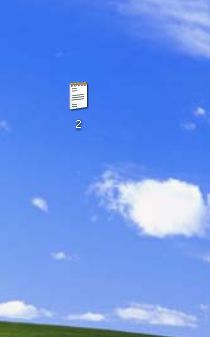
STEP2: copy a particular image(say 1.jpg) to be used for hiding data behind it. on desktop
HIDE-YOUR-PERSONAL-DATA-BEHIND-A-IMAGE

STEP3:-now select your personal file(say 2.txt) to hide behind that image.
HIDE-YOUR-PERSONAL-DATA-BEHIND-A-IMAGE 
Archive it with WINRAR, by right click on it.(make it in .rar format).And paste it on desktop(say 2.rar).

HIDE-YOUR-PERSONAL-DATA-BEHIND-A-IMAGE
STEP4:-now open the command line by typing cmd in run box. Or (start>accessories>command prompt).
HIDE-YOUR-PERSONAL-DATA-BEHIND-A-IMAGE

STEP5:-type the following command in command line:-
cd desktop

HIDE-YOUR-PERSONAL-DATA-BEHIND-A-IMAGE

NOTE: CD is used for change the directory.
STEP6:- now type the highlighted command in command line(note: put spaces at right places):-
Copy /b imagename.jpg + filename.rar finalimage.jpg

IN THE ABOVE COMMAND CHANGE:-
imagename.jpg by image name you want to hide the document behind the image.
Filename.rar by your personal document name(say 2.rar).
Finalimage.jpg by your final image. This is the image(SAY 3.jpg) where your document will be hidden.
EXAMPLE:-
Copy /b 1.jpg + 2.rar 3.jpg

AND PRESS ENTER. NOW A NEW FILE WILL BE GENERATED ON DESKTOP.(SAY 3.JPG)
HIDE-YOUR-PERSONAL-DATA-BEHIND-A-IMAGE
NOTE:THE TASK IS TOTALLY COMPLETED.NOW WHEN YOU OPEN THE FINAL IMAGE(3.jpg) IT WILL OPEN AS NORMAL IMAGE.
FOR OPEN YOUR HIDDEN FILES BEHIND THAT IMAGE, FOLLOW THE STEPS:-
STEP1:-open WINRAR, and click on file>open.
HIDE-YOUR-PERSONAL-DATA-BEHIND-A-IMAGE

STEP2:-here open your final image (say 3.jpg).OR YOU CAN DRAG IT DIRECTLY TO THE WINRAR. And it will display your personal document.
HIDE-YOUR-PERSONAL-DATA-BEHIND-A-IMAGE

NOW YOU CAN HIDE YOUR PERSONAL DATA LIKE VIDEOS, TEXT FILES BEHIND ANY IMAGE BY THAT SIMPLE TWEAK.
IF YOU HAVE ANY PROBLEM REGARDING THAT POST, PLEASE LEAVE A COMMENT FOR US. AND PLEASE DONT FORGET TO SHARE THAT POST WITH YOUR FRIENDS.


LOCK ANY FOLDER WITHOUT SOFTWARE

0 comments
LOCK-FOLDER-WITHOUT-SOFTWARE
HI FRIENDS, IN THAT POST I AM SHARING A TRICK IN WHICH YOU CAN LOCK FOLDER WITHOUT ANY SOFTWARE. In that folder you can put your personal files and documents. That folder become a password protected folder without any software. This trick will work on all windows system like(XP/7/8). To lock a folder follow the steps:-
STEP1:- Open notepad(start> accessories> notepad), paste the following highlighted code in it.
cls
@ECHO OFF
title www.cyber-sol.blogspot.in
if EXIST "Control Panel.{21EC2020-3AEA-1069-A2DD-08002B30309D}" goto UNLOCK
if NOT EXIST MyFolder goto MDMyFolder
:CONFIRM
echo want to lock the folder? (Y/N)
set/p "cho=>"
if %cho%==Y goto LOCK
if %cho%==y goto LOCK
if %cho%==n goto END
if %cho%==N goto END
echo Invalid choice.
goto CONFIRM
:LOCK
ren MyFolder "Control Panel.{21EC2020-3AEA-1069-A2DD-08002B30309D}"
attrib +h +s "Control Panel.{21EC2020-3AEA-1069-A2DD-08002B30309D}"
echo Folder locked
goto End
:UNLOCK
echo Enter password to Unlock your folder
set/p "pass=>"
if NOT %pass%== cybersolution goto FAIL
attrib -h -s "Control Panel.{21EC2020-3AEA-1069-A2DD-08002B30309D}"
ren "Control Panel.{21EC2020-3AEA-1069-A2DD-08002B30309D}" MyFolder
echo Folder Unlocked successfully
goto End
:FAIL
echo Invalid password
goto end
:MDMyFolder
md MyFolder
echo MyFolder created successfully
goto End
:End

LOCK-FOLDER-WITHOUT-SOFTWARE


STEP2:- Now save it as abc.bat.
STEP3:- Now double click on abc.bat. Then a new folder will be created with name myfolder.
LOCK-FOLDER-WITHOUT-SOFTWARE

STEP4:- Now open abc.bat then press y and press enter.
STEP5:- Now myfolder will be hidden from desktop, to access that double click on it.
STEP6:- it will ask for password, enter your default password(cybersolution). You can change it in above code.
STEP7:- Now my folder will be hidden from desktop.
NOTE:- NOW YOU CAN PUT YOUR PERSONAL FILES IN MYFOLDER. FOR THE SECURITY PURPOSES KEEP ABC.BAT IN YOUR PEN DRIVE OR AT SECURE PLACE.

IF YOU HAVE STUCK AT ANY STEP, PLEASE LEAVE A COMMENT BELOW THE POST.

MAKES YOUR KEYBOARD LEDS TO DANCE

0 comments
makes-keyboard-led-blink

HI friends,Today I will be telling you a fantastic trick which will makes your keyboard LEDS to dance. It is also a good prank for your friends.
you may also like:-
 In this trick we have to create a simple visual basic script to make three LEDS example: CAPS LOCK, SCROLL LOCK, NUM LOCK dance. It is a very simple task.
To make the LEDS blinking follow the steps:-
step1: Open notepad and paste the following code in it.
 Set wshShell =wscript.CreateObject("WScript.Shell")  
 do  
 wscript.sleep 100  
 wshshell.sendkeys "{CAPSLOCK}"  
 wshshell.sendkeys "{NUMLOCK}"  
 wshshell.sendkeys "{SCROLLLOCK}"  
 loop  


MAKE-KEYBOARD-LEDS-TO-DANCE

step 2: Then save it as abc.vbs (vbs is stands for visual basic script)
MAKE-KEYBOARD-LEDS-TO-DANCE

step 3: Now open the save file and see the magic. Yes, your keyboard LEDS blinking like Christmas, Diwali lights
NOW, HOW TO STOP THE BLINKING LIGHT:-
FOR THAT,FOLLOW THE STEPS:-
step 1: Open task manager by pressing (ctr l + alt + Del)
step 2: Navigate to process tab.
MAKE-KEYBOARD-LEDS-TO-DANCE

Step 3: search for wscript.exe and select it.
MAKE-KEYBOARD-LEDS-TO-DANCE

step 4: click on end process.
YOU CAN DIRECT DOWNLOAD THE VB SCRIPT FILE FROM :
DOWNLOAD HERE
NOTE: IF YOU GOT STUCK ANY POINT, PLEASE LEAVE A COMMENT BELOW THE POST.
AND SUBSCRIBE US, FOR MORE UPDATES.

WATCH STAR WARS IN CMD

0 comments

STAR-WAR-IN-CMD

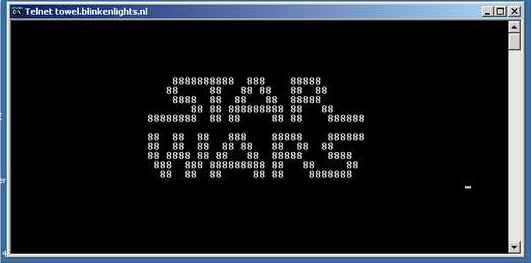
In that post I am sharing a new prank . But it is a good trick for command prompt beginners .this is a simple command tweak which play star wars in command prompt. Star wars is a famous film series. So For watching star wars in your cmd, please follow the steps:-
step1:- open command prompt by(start> accessories> command prompt )


step2:- Now type “telnet” without quota’s and press enter.
STAR-WAR-IN-CMD

Step3:- Now press “o” without the quota's.
STAR-WAR-IN-CMD

Step4:- Then enter the following highlighted command:-
towel.blinkenlights.nl
STAR-WAR-IN-CMD

step5:- press enter, Now, satr war movie will start in your command prompt, and enjoy it.
STAR-WAR-IN-CMD

TROUBLESHOOTING:-
STEP1:- Go to start> control panel> uninstall programs
STAR-WAR-IN-CMD

STE2:- click on turn windows features on or off.
STAR-WAR-IN-CMD

STEP3:- From pop up window check mark to telnet client
STAR-WAR-IN-CMD

STEP4:- save the setting.
NOTE: DONT FORGET TO SHARE IT WITH YOUR FRIENDS.
ANY PROBLEM, THEN LEAVE A COMMENT BELOW THE POST.


HOW TO MAKE A NAMELESS AND IMAGELESS FOLDER

0 comments
MAKE-A-NAME-LESS-AND-IMAGE-LESS-FOLDER

HI FRIENDS, In that post I am sharing a trick about “HOW TO MAKE A NAMELESS AND IMAGE-LESS FOLDER”. It is a simple tweak for your friends. This trick will allow you to make folder without any name and image. This trick is applicable for all windows systems.
SO, NOW LETS START, TO MAKE A NAMELESS AND IMAGE LESS FOLDER, FOLLOW THE STEPS:-
Step1:- Make a new folder on desktop or on other places.
MAKE-A-NAME-LESS-AND-IMAGE-LESS-FOLDER

Step2:- Right click on it and select rename.
MAKE-A-NAME-LESS-AND-IMAGE-LESS-FOLDER

Step3:-Erase the text in text box, and now keep pressing alt key and type 255, and then release the alt button.
MAKE-A-NAME-LESS-AND-IMAGE-LESS-FOLDER

NOTE:- LAPTOP USERS NEED TO ENABLE   NUM LOCK.
Step4:- For removing the folder image, right click on folder and select properties.
MAKE-A-NAME-LESS-AND-IMAGE-LESS-FOLDER

Step5:- IN customize tab select the change icon menu. A new window will open. Now there search for a blank image. And select it.
MAKE-A-NAME-LESS-AND-IMAGE-LESS-FOLDER


Step6:- Press OK.
DONE! YOU HAVE CREATED A FOLDER..

IF YOU HAVE ANY PROBLEM REGARDING THIS POST THEN PLEASE LEAVE A COMMENT BELOW THE POST.

Sunday, 16 June 2013

COMMAND PROMPT ON RIGHT-CLICK

0 comments
COMMAND-PROMPT-ON-RIGHT-CLICK
Sometimes it is necessary to launch command prompt window while the execution of PROGRAMS.And the main problem is that,when command prompt is open,the default path is the system path.Then user will have to do type “cd/” command to change the working directories.In this tutorial you will learn that how to add an option called “command prompt” on right click on a folder.It is just a simple Registry editing.When user click on this option ,then command prompt will launched with the path of selected folder To get the “command prompt” on right click,follow these steps:-
Step-1:Go to Start ,then click on Run,In the box,type "regedit" and press enter
COMMAND-PROMPT-ON-RIGHT-CLICK
Step-2: Go to the "HKEY_LOCAL_MACHINE\SOFTWARE\Classes\Folder\shell"
COMMAND-PROMPT-ON-RIGHT-CLICK
Step-3:Right click on "shell" and select and select new key Note:-Be sure that a new key is created under "shell". Now rename it to "Command Prompt"
COMMAND-PROMPT-ON-RIGHT-CLICK
Step-4:Right-click on "Command Prompt" and then select New Key
Step-5:Rename it to the "command"
COMMAND-PROMPT-ON-RIGHT-CLICK
Note: It is case sensitive
Step-6:Double-click on the "Default" on the right side of window
Step-7: Type the highlighted string in the text box
cmd.exe "%1"
COMMAND-PROMPT-ON-RIGHT-CLICK
Step-8:Click ok and refresh the registery by pressing F5,and enjoy
Note:-for better performance restart your system.


If you got stuck at any point,please leave a comment for us.
 

ABOUT THE AUTHOR

Founder & Author:I ABHISHEK BHATI student of COMPUTER SCIENCE by education a Blogger by profession. Exploring Technology is my passion.BHATI TRICKS is place for Tech Lovers. ABHISHEK BHATI launched his frist Marketing Site in 2013.
...Read More

GET FREE EMAIL UPDATES

Join us for free and get valuable content delivered right in your inbox.


recent comments

BHATI TRICKS Widget

| BHATI TRICKS © BHATI TRICKS. All Rights Reserved | | Back To Top |