WELCOME TO BHATI TRICKS WRITE FOR US ADVERTISE YOUR BLOG/SITE HERE POST YOUR ARTICLE/TRICK HERE


Showing posts with label NOTEPAD. Show all posts

Wednesday, 7 August 2013

TEST YOUR ANTIVIRUS BY A SIMPLE TRICK

0 comments
TEST-YOUR-ANTIVIRUS

HI! friends, In this article, Today i am sharing a outstanding trick to test your anti-virus.
Have you ever wondered how to test your Antivirus software to ensure it’s proper working? Well here is a quick and easy way to test your antivirus. The process is called EICAR test which will work on any antivirus and was developed by European Institute of Computer Antivirus Research. This process can be used by people, companies and antivirus programmers to test the proper functioning of the antivirus/antimalware software without having to deal with the real computer virus which can cause damage to the computer. Here is a step-by-step procedure to test your antivirus.


 STEP 1. Open a notepad (New Text Document.TXT) and copy the following code exactly onto it, and save the notepad.

EICAR Test code
X5O!P%@AP[4\PZX54(P^)7CC)7}$EICAR-STANDARD-ANTIVIRUS-TEST-FILE!$H+H*
 
STEP 2. Rename the file from New Text Document.TXT to myfile.com

STEP 3. Now run the antivirus scan on this myfile.com file.

If the antivirus is functioning properly on your computer, then it should generate a warning and immediately delete the file upon scanning. Otherwise you may have to re-install your antivirus.

NOTE: Most antivirus will pop-out a warning message in the Step-1 itself
 
You can also place the myfile.com file in a ZIP or RAR file and run a scan on it so as to ensure whether your antivirus can detect the test string in the compressed archive. Any antivirus when scanning this file will respond exactly as it will do for a genuine virus/malicious code. This test will cause no damage to your computer even though the antivirus will flag it as a malicious script. Hence it is the safest method to test the proper functioning of any antivirus.
PLEASE SUBSCRIBE US, FOR MORE UPDATES.

Friday, 19 July 2013

DISABLE USB PORTS WITHOUT ANY SOFTWARE

0 comments


DISABLE-USB-PORTS-WITHOUT-ANY-SOFTWARE

Pen drives are major cause of virus,  malwares and other suspicious threats in your system. it is possible to disable USB ports of your system, which prevent unwanted user (friends and others) to transfer data from your system.
In this article I will tell you that how to disable USB port by simple registry edit. So now let’s start.

Note:- Before going ahead take a back up of your registry.
Please follow the steps:-
Step 1:- open run and type “regedit".
DISABLE-USB-PORTS-WITHOUT-ANY-SOFTWARE
Step 2:- Navigate to the
[HKEY_LOCAL_MACHINE\SYSTEM\CurrentControlSet\Services\USBSTOR]
DISABLE-USB-PORTS-WITHOUT-ANY-SOFTWARE
Step 3:- Now create a dword file by right click on USBSTOR
DISABLE-USB-PORTS-WITHOUT-ANY-SOFTWARE
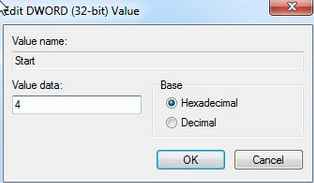
Step 4:- Rename it as "start" (dont create it if it is already exist).
Step 5:- Now open it,and set the value "4" in the value data box.
DISABLE-USB-PORTS-WITHOUT-ANY-SOFTWARE
Step 6:- Now refresh the registry by pressing F5. And restart your system, and see the effect.
NOTE:- FOR ENABLING CHANGE THE VALUE DATA TO THE 3.THEN RESTART YOUR COMPUTER,AND SYSTEM WILL SHOW USB DRIVES AGAIN.
PLEASE IF YOU GOT STUCK AT ANY POINT, PLEASE LEAVE A COMMENT FOR US. AND DON'T FORGET TO SUBSCRIBE US.

LOCK ANY FOLDER WITHOUT SOFTWARE

0 comments
LOCK-FOLDER-WITHOUT-SOFTWARE
HI FRIENDS, IN THAT POST I AM SHARING A TRICK IN WHICH YOU CAN LOCK FOLDER WITHOUT ANY SOFTWARE. In that folder you can put your personal files and documents. That folder become a password protected folder without any software. This trick will work on all windows system like(XP/7/8). To lock a folder follow the steps:-
STEP1:- Open notepad(start> accessories> notepad), paste the following highlighted code in it.
cls
@ECHO OFF
title www.cyber-sol.blogspot.in
if EXIST "Control Panel.{21EC2020-3AEA-1069-A2DD-08002B30309D}" goto UNLOCK
if NOT EXIST MyFolder goto MDMyFolder
:CONFIRM
echo want to lock the folder? (Y/N)
set/p "cho=>"
if %cho%==Y goto LOCK
if %cho%==y goto LOCK
if %cho%==n goto END
if %cho%==N goto END
echo Invalid choice.
goto CONFIRM
:LOCK
ren MyFolder "Control Panel.{21EC2020-3AEA-1069-A2DD-08002B30309D}"
attrib +h +s "Control Panel.{21EC2020-3AEA-1069-A2DD-08002B30309D}"
echo Folder locked
goto End
:UNLOCK
echo Enter password to Unlock your folder
set/p "pass=>"
if NOT %pass%== cybersolution goto FAIL
attrib -h -s "Control Panel.{21EC2020-3AEA-1069-A2DD-08002B30309D}"
ren "Control Panel.{21EC2020-3AEA-1069-A2DD-08002B30309D}" MyFolder
echo Folder Unlocked successfully
goto End
:FAIL
echo Invalid password
goto end
:MDMyFolder
md MyFolder
echo MyFolder created successfully
goto End
:End

LOCK-FOLDER-WITHOUT-SOFTWARE


STEP2:- Now save it as abc.bat.
STEP3:- Now double click on abc.bat. Then a new folder will be created with name myfolder.
LOCK-FOLDER-WITHOUT-SOFTWARE

STEP4:- Now open abc.bat then press y and press enter.
STEP5:- Now myfolder will be hidden from desktop, to access that double click on it.
STEP6:- it will ask for password, enter your default password(cybersolution). You can change it in above code.
STEP7:- Now my folder will be hidden from desktop.
NOTE:- NOW YOU CAN PUT YOUR PERSONAL FILES IN MYFOLDER. FOR THE SECURITY PURPOSES KEEP ABC.BAT IN YOUR PEN DRIVE OR AT SECURE PLACE.

IF YOU HAVE STUCK AT ANY STEP, PLEASE LEAVE A COMMENT BELOW THE POST.

Thursday, 4 July 2013

USE ANY BROWSER AS NOTEPAD

0 comments
USE ANY BROWSER AS NOTEPAD
USE-ANY-BROWSER-AS-NOTEPAD

Friends,In this post you will find that how can we use any browser as a notepad or “writer”.
Many times,I need to note some important data such as keys,codes etc. then I open a notepad to note it.
And I think you also do it for many purposes. But in that post I am share a solution of that problem in which you will learnt that  “how to use any browser as notepad”. Really it is not a joke ,you can do it simply by following some steps. For this you have to create a bookmark.To make it possible follow the following steps:-
STEP 1.) Firstly open your browser(let say Google chrome),and create a new bookmark.
USE-ANY-BROWSER-AS-NOTEPAD

STEP 2.) Give it a name (example NOTEPAD)
STEP 3.) In the address bar(bookmar) type the following scipt.
data:text/html,%20<html%20contenteditable>
USE-ANY-BROWSER-AS-NOTEPAD

STEP 4.)click on save.
USE-ANY-BROWSER-AS-NOTEPAD

Now the work is totally completed,when you have to note some notes from any website,then click on “notepad” bookmark. It will open a new tab, and you can write anything here.
If have any problem,leave a comment below. AND SUBSCRIBE US FOR LATEST UPDATES.
 

ABOUT THE AUTHOR

Founder & Author:I ABHISHEK BHATI student of COMPUTER SCIENCE by education a Blogger by profession. Exploring Technology is my passion.BHATI TRICKS is place for Tech Lovers. ABHISHEK BHATI launched his frist Marketing Site in 2013.
...Read More

GET FREE EMAIL UPDATES

Join us for free and get valuable content delivered right in your inbox.


recent comments

BHATI TRICKS Widget

| BHATI TRICKS © BHATI TRICKS. All Rights Reserved | | Back To Top |